Upgrading and installation
MikroTik devices are preinstalled with RouterOS, so installation is usually not needed, except in the case of installing RouterOS on a bare metal x86 PC or a virtual machine via CHR images. The upgrade procedure on already installed devices is straightforward.
Upgrading
Version numbering
RouterOS versions are numbered sequentially when a period is used to separate sequences; it does not represent a decimal point, and the sequences do not have positional significance. An identifier of 2.5, for instance, is not "two and a half" or "halfway to version three"; it is the fifth second-level revision of the second first-level revision. Therefore v5.2 is older than v5.18, which is newer.
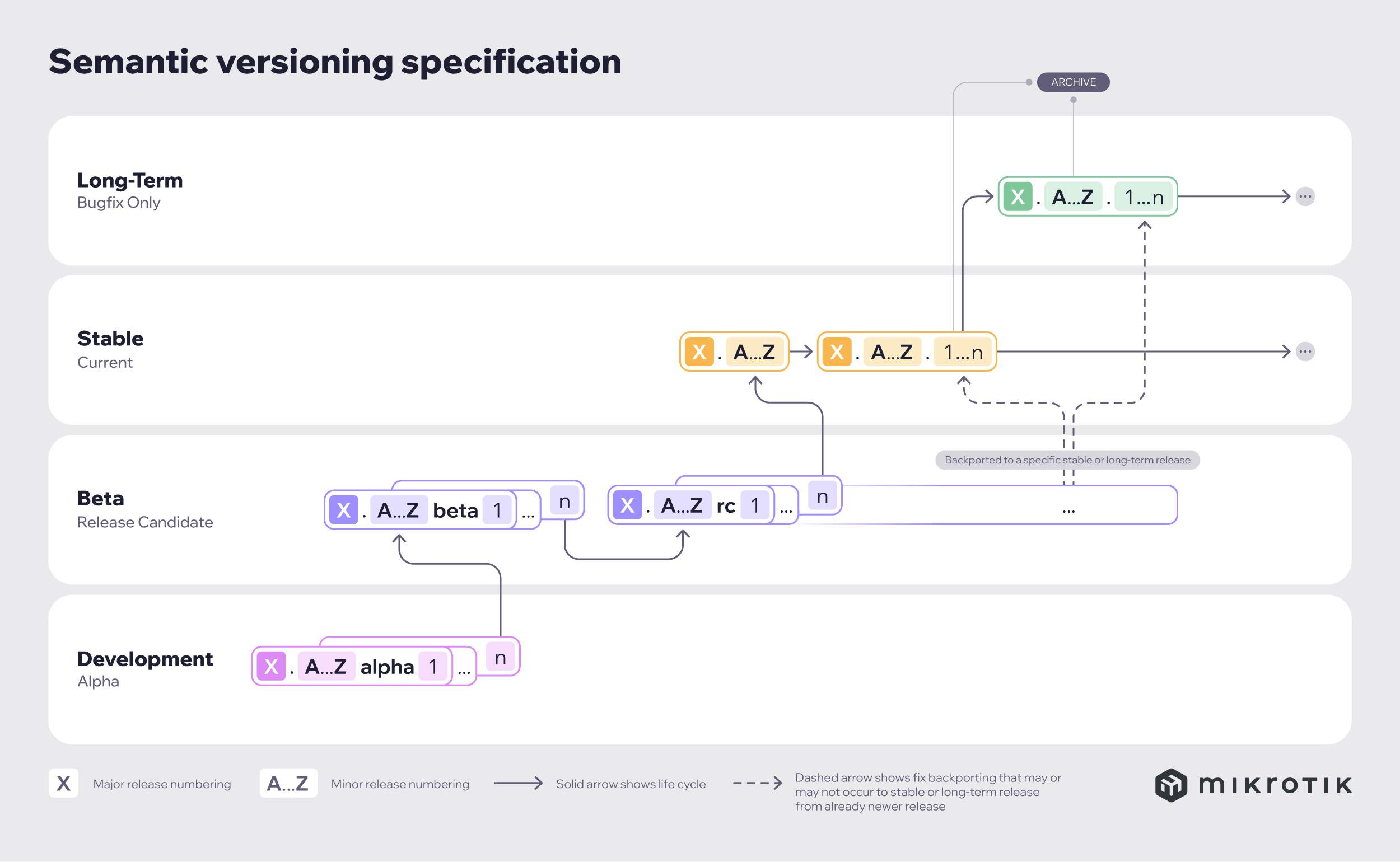
RouterOS versions are released in several "release chains": Long term, Stable, Testing, and Development. When upgrading RouterOS, you can choose a release chain from which to install the new packages:
- Long term: Released rarely, and includes only the most critical fixes. Upgrades within one number branch do not contain new features. When a Stable release has been out for a while and seems to be stable enough, it gets promoted into the long-term branch, replacing an older release, which is then moved to the archive. This consecutively adds new features.
- Stable: Released every few months, including all tested new features and fixes.
- Testing: Released every few weeks, it only undergoes basic internal testing, and should not be used in production.
- Development: Released when necessary. Includes raw changes and is available for software enthusiasts for testing new features.
Standard upgrade
The package upgrade feature connects from the router to the MikroTik download server via HTTPS (since v7.23) and checks if a newer RouterOS version is available in the selected release channel. This menu can also be used for downgrading by changing the channel to one that offers an older, but more stable release. Note that the feature connects from the router, not your computer, so the router itself needs HTTPS connectivity to the MikroTik server. Ensure TCP port 443 is allowed in any firewall that may be in front of this router.
After clicking the Check for Updates button in QuickSet or in the System → Packages menu, the Check for Updates window will open with the current changelog or the latest changelog (if a newer version exists). If a newer version is available, the Download and Download&Install buttons will appear. Clicking Download downloads the newest version (a manual device reboot is required), while clicking Download&Install starts the download and automatically reboots the device after a successful download.
The versions offered depend on the selected release channel. Not all versions may be available. It is not possible to upgrade from an older version to the latest version in one step when using the check-for-updates approach. For example, if running RouterOS v6.x, even when selecting the major release upgrade channel called "Upgrade", you will only see v7.12.1 as the available version. You must first upgrade to that intermediate version, and only then will newer releases be available in the channels. This intermediate step can be done using check for updates as well; you will simply need to repeat check for updates after the first update to the intermediate version.
If custom packages are installed, the downloader takes this into account and downloads all necessary packages.
Settings
Sub-menu: /system/package/update
| Property | Description |
|---|---|
| channel (development | long-term | stable | testing ) | Upgrade channel to use when checking for new versions. See above. |
| check-certificate (no | yes | yes-without-crl; Default: yes) | Whether and how to validate the server SSL certificate. Recommended to always use "yes". |
| ip-version (auto | ipv4 |ipv6; Default: auto ) | IPv4 or IPv6 preference |
| mode (http | https; Default: https ) | You can use http in case your network blocks https, or there is another reason to use plain http, but it is suggested to use HTTPS. |
It is strongly recommended to upgrade the bootloader after RouterOS update. To upgrade the bootloader, execute the command "/system/routerboard/upgrade" in CLI, followed by a reboot. Alternatively, navigate to the GUI System → RouterBOARD menu and click the "Upgrade" button, then reboot the device.
You can automate the upgrade process by running a script in the system scheduler. This script queries the MikroTik upgrade servers for new versions. If the response received says "New version is available", the script then issues the upgrade command below. Important note: this will not work, if you are running it for the first time on an older release. It might not see the latest versions as available, if you are running v6.x, you would first have to manually select the "Upgrade" channel to do a major release upgrade to v7.12.1 intermediate version, and only afterwards newer v7 releases will be visible in the upgrade channels.
[admin@MikroTik] >/system/package/update
check-for-updates once
:delay 3s;
:if ( [get status] = "New version is available") do={ install }
Manual upgrade
You can upgrade RouterOS in the following ways:
- WinBox – drag and drop files to the Files menu.
- WebFig - upload files from the Files menu.
- FTP - upload files to the root directory.
It is strongly recommended to upgrade the bootloader after upgrading RouterOS. To upgrade the bootloader, execute the command "/system/routerboard/upgrade" in CLI, followed by a reboot. Alternatively, navigate to the GUI System → RouterBOARD menu and click the "Upgrade" button, then reboot the device.
Warning: RouterOS cannot be upgraded through a serial cable. Only RouterBOOT is upgradeable using this method.
Manual upgrade process
- First step - visit www.mikrotik.com and head to the Software page, then choose the architecture of the system you have RouterOS installed on (system architecture can be found in System → Resource section).
- Download the routeros (main) and extra packages that are installed on the device.
- Upload packages to the device using one of the previously mentioned methods.
Menu: /system/package/update/install ignore-missing the command allows upgrading only the RouterOS main package, while omitting packages that are either missing or not uploaded during a manual upgrade process.
Using WinBox
Choose your system type, and download the upgrade package. Connect to your router with WinBox. Select the downloaded file with your mouse, and drag it to the Files menu. If some files are already present, make sure to put the package in the root menu, not inside the hotspot folder! The upload will start.
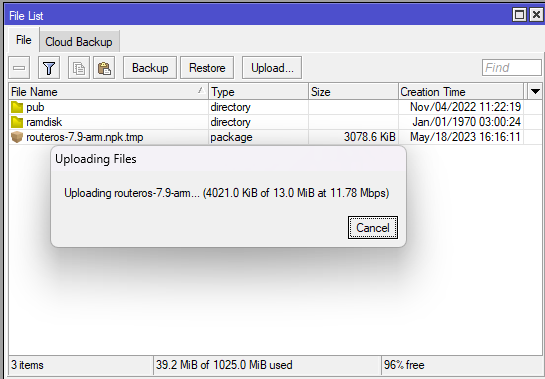
After it finishes - reboot the device. The new version number will be seen in the Winbox Title and in the Packages menu
Using S/FTP
- Open your favorite S/FTP program, select the package, and upload it to your router.
- If you wish, you can check if the file is successfully transferred onto the router (optional).
[admin@MikroTik] >/file/print
Columns: NAME, TYPE, SIZE, CREATION-TIME
# NAME TYPE SIZE CREATION-TIME
0 routeros-7.9-arm.npk 13.0MiB 2023-05-18 16:16:18
1 pub directory 2022-11-04 11:22:19
2 ramdisk directory 1970-01-01 03:00:24
- Reboot your router for the upgrade process to begin.
[admin@MikroTik] >/system/reboot
Reboot, yes? [y/N]: y
- after the reboot, your router will be up to date, and you can check it in this menu:
[admin@MikroTik] >/system/package/print
- if your router did not upgrade correctly, make sure you check the log
[admin@MikroTik] >/log/print without-paging
RouterOS local upgrade
Sub-menu: /system/package/local-update
You can upgrade one or multiple MikroTik routers within your local network by using one device which has all needed packages. Here is a simple example with 3 routers (the same method works on networks with infinite number of routers):
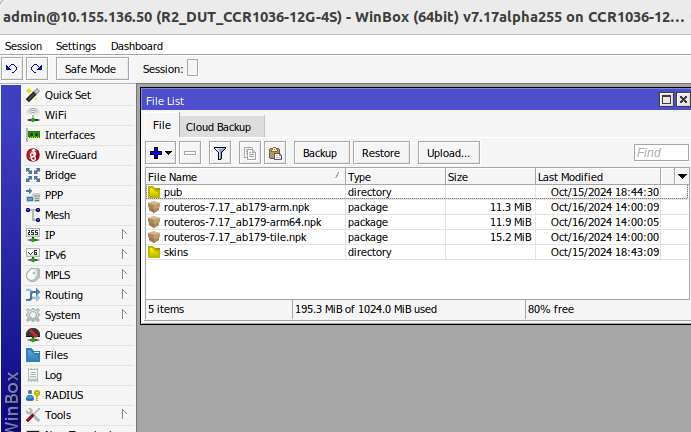
Place needed packages under the Files menu, on your main router:
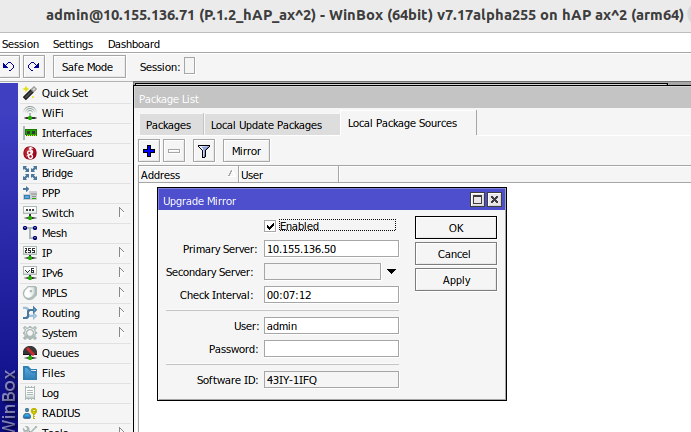
Optional, you can set a mirror device between the main ones, if not needed, skip this step:
- Choose Local Package Sources and enable Mirror device. Set Primary Server where the packages are located, 10.155.136.50. Check Interval minimum setting can be set to 00:07:12, at which the device will connect using Winbox to a main device and check for packages.
If new packages are available, it will begin to download, please note the download process is slow and may require some time when a large amount of files are used. In case of some failures, download will resume on next Check.
- A new "packs" folder is created, where the mirror device will store packages:
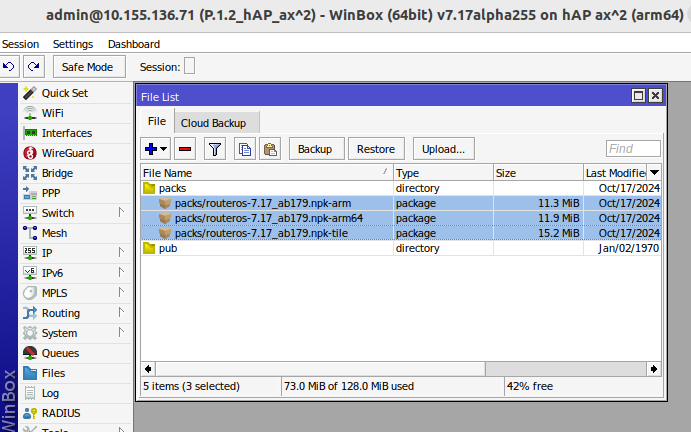
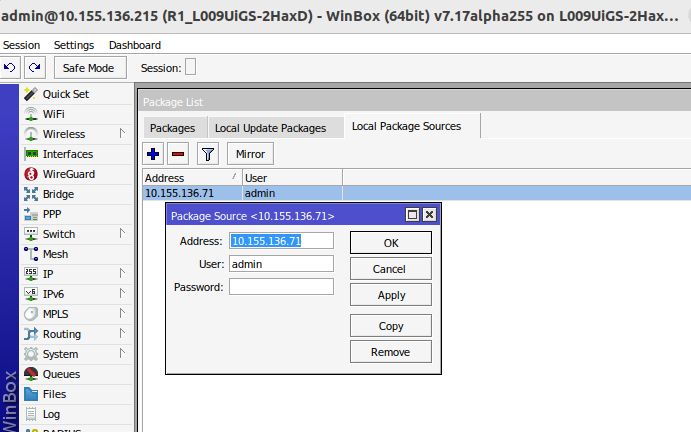
- Add a new package source on the device which will be updated, in this example we use mirror device 10.155.136.71:
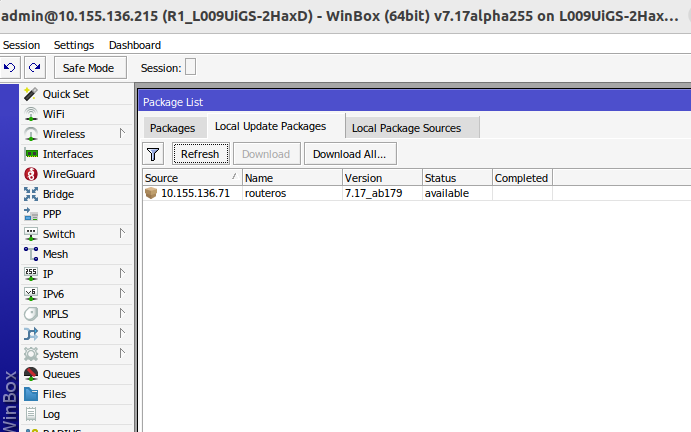
- Once you click Refresh in the Local Update packages tab, the device using Winbox will try to connect to the source and check if there are new packages.
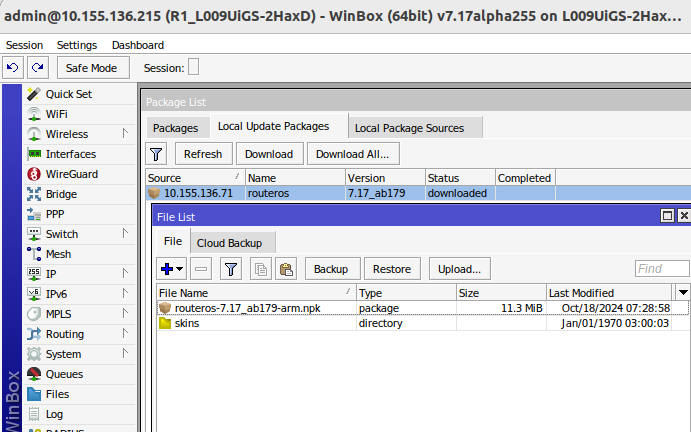
- Choose packages and click download, after download completes, the device will need to reboot for update.
- Use
/system/package/local-update/refreshto automate this in your scripts and tools fetch url= can be used to download packages from our web page, for example:/tool/fetchurl=https://download.mikrotik.com/routeros/7.16.1/routeros-7.16.1-arm.npk
Related topics
Packages
Summary